Owlboy Keyboard Controls: ZXC and Arrow Keys
Which keyboard keys Owlboy uses for throwing, shooting, and spin attacks, and how to play the whole game with keyboard only.
Owlboy Keyboard Controls: ZXC and Arrow Keys
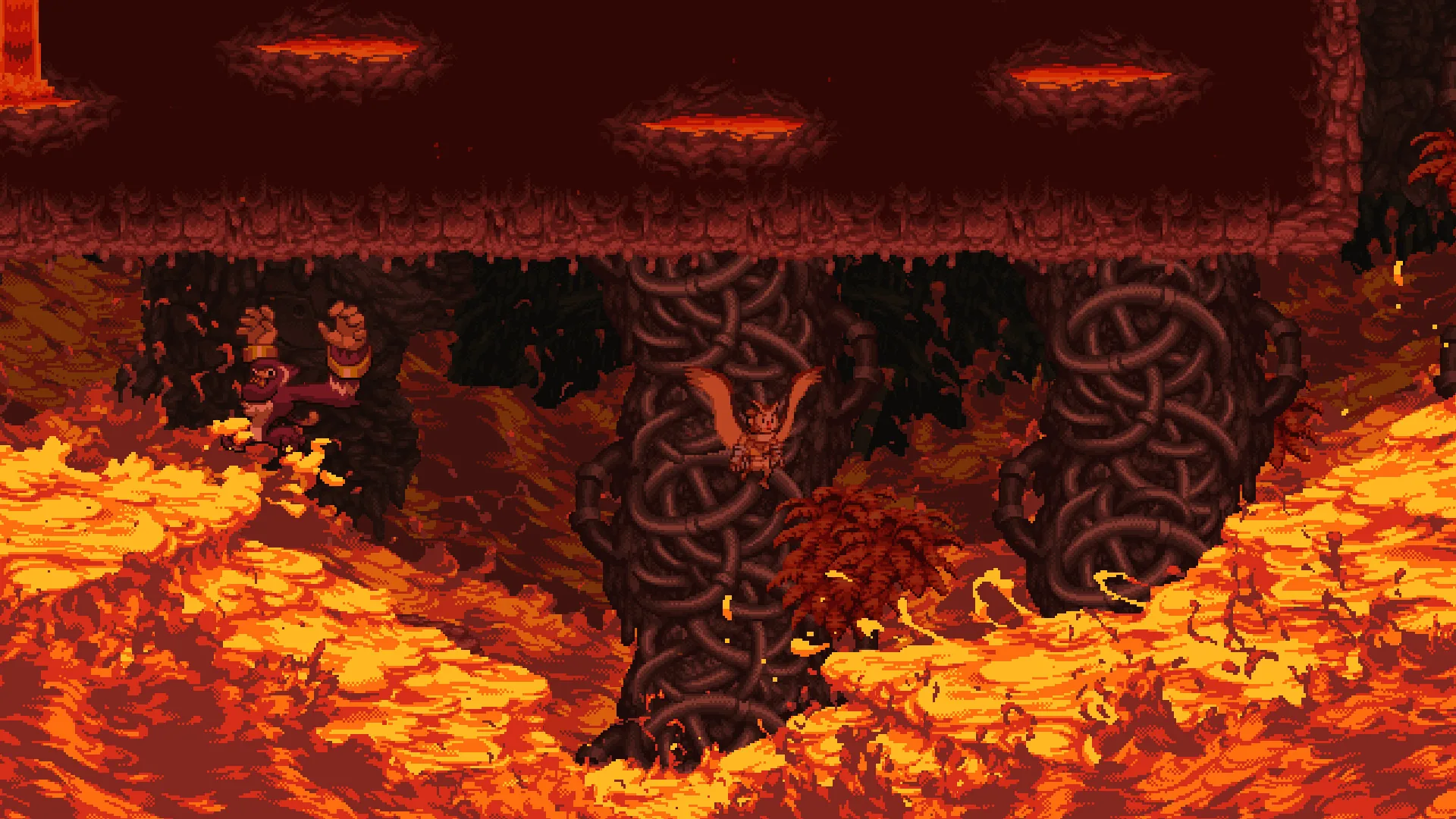
Owlboy's keyboard options include the ZXC-keys, which according to the official Steam announcement for the Anniversary Update can be used for Throw (Z-key), Shoot (X-key) and Spin Attack (C-key). The earlier "Coming Soon" announcement describes controlling Otus with the Arrow-keys. Together with the new auto-aim feature, this means the entire game can be played with the keyboard only, according to those announcements.
What the Anniversary Update Lists
The official update announcement describes these keyboard actions directly:
- Z-key: Throw
- X-key: Shoot
- C-key: Spin Attack
The same announcement also mentions Fast-Forward through cutscenes by holding the "Fast-forward" button, which defaults to the F-key or Right Bumper.
Arrow Keys and Auto-Aim
The October 2026 "Coming Soon" announcement explains the reasoning behind the change. Many players found the controllers finicky because the game required two thumbsticks, so the developers added auto-aim. With auto-aim active and the new keyboard actions, the announcement states the game should be playable using only the keyboard, controlling Otus with the Arrow-keys. It also notes that even on a laptop with only a touchpad, the game is completely playable.
Toggles and Alternatives
Auto-aim is not forced on. According to the official update announcement, auto-aim can be toggled on or off in the Options Menu, and the same menu offers toggles for screenshake, flash effects and "Drop Gunner On Dodge." The October announcement adds that you can still use a second thumbstick for precise aiming like before, so keyboard play is an option rather than a replacement.
What Is Not Documented
The official announcements do not list default keys for Fly, Dash, Roll or Grab. The Super Dash is described as performed by holding the "Roll" button, but no keyboard key for Roll is stated in the official sources. Readers should check the in-game Options Menu for the full current binding list, since these details are not covered in the material summarised here.
Related Guides
Owlboy Auto-Aim: How to Turn It On or Off
Where to find the Owlboy auto-aim setting, what it changes about aiming with controllers, and whether you can still aim manually.
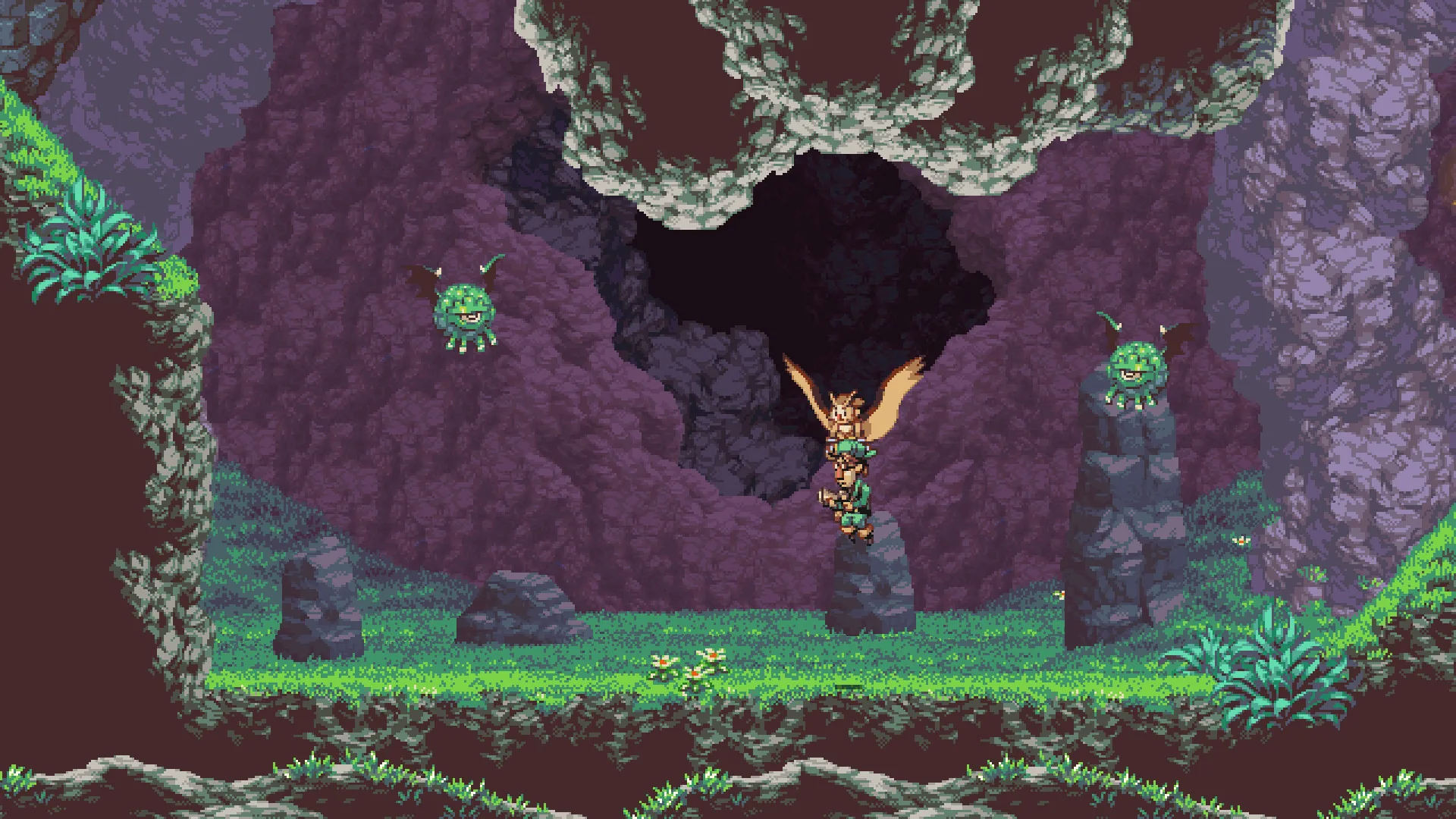
How to Use Super Dash in Owlboy
How the Super Dash works in Owlboy, which button to hold, and how it improves on spamming the roll button for faster movement.
Owlboy Settings Toggles: Screenshake, Flash, Dodge
An overview of the toggles in Owlboy's Options menu, including screenshake, flash effects, auto-aim and Drop Gunner On Dodge.